



If you want to learn Excel formulas, this guide is for you. Many people use MS Excel every day for office work, school work, and business. But only a few know the real power of Excel formulas. When you understand Excel formulas, your work becomes faster, smarter, and more accurate.
In this simple guide, you will learn 25+ basic Excel formulas, examples, and the best Excel tricks you can use daily. This is a complete MS Excel formulas list that beginners, students, and professionals can follow easily.
This guide is written in simple words so anyone can understand the Excel formulas list without any confusion. You will also learn how to apply formulas in Excel, Excel functions, Excel shortcuts, Excel sheet formulas, and some advanced Excel tips.
What is the Meaning of Excel?
Excel or MS Excel is a software made by Microsoft. It helps you store data, make tables, do calculations, use excel formulas and functions, make charts, and create reports. In simple words, Excel's meaning is “a smart tool to do work fast.”
How to Apply a Formula in Excel
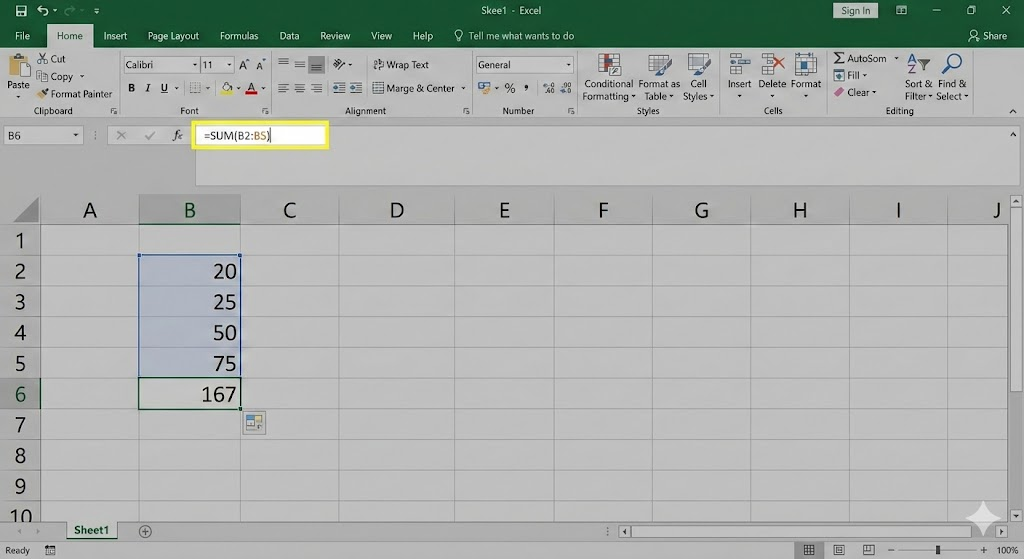
Before looking at the MS Excel formulas list, you must know how to apply a formula in Excel.
- Select a cell.
- Type the equal sign (=). Every formula in Excel must start with this.
- Type the formula name (e.g., SUM).
- Open the bracket (, select your data, and close the bracket ).
- Press Enter.
List of 25+ Basic Excel Formulas With Simple Examples
Below are the most useful excel formulas that you can use in daily work. This ms excel formulas list covers all important excel functions and excel basic formulas.
1. SUM Formula in Excel
The sum formula in Excel is one of the most useful excel formulas because it adds numbers quickly.
Example:
=SUM(A1:A5)
This formula in excel adds all values from A1 to A5.
2. AVERAGE Formula (How to Calculate Average in Excel)
This formula helps you find the average of numbers.
Example:
=AVERAGE(B1:B5)
3. MIN Formula
This excel formula finds the smallest number.
Example:
=MIN(C1:C10)
4. MAX Formula
This formula finds the biggest number.
Example:
=MAX(D1:D10)
5. COUNT Formula
This excel formula counts how many cells have numbers.
Example:
=COUNT(E1:E20)
6. COUNTA Formula
This formula counts text and numbers both.
Example:
=COUNTA(A1:A20)
7. CONCATENATE in Excel (Text Join)
You can join two or more text values using concatenate in excel.
Example:
=CONCATENATE("Hello ","World")
Used in daily work to join names, IDs, etc.
8. IF Formula in Excel
This is one of the most important excel formulas for decision-making.
Example:
=IF(A1>50,"Pass","Fail")
9. DATE Formula in Excel
This formula creates a date from a year, month, and day.
Example:
=DATE(2025,1,15)
10. TODAY Formula
It gives today’s date.
=TODAY()
11. NOW Formula
It gives date + time.
=NOW()
12. TRIM Formula
This excel formula removes extra spaces from text.
Example:
=TRIM(A1)
13. LEN Formula
It counts the number of characters in a cell.
Example:
=LEN(A1)
14. LEFT Formula
This formula gives characters from the left side.
=LEFT(A1,3)
15. RIGHT Formula
This formula gives characters from the right side.
=RIGHT(A1,4)
16. MID Formula
This formula picks text from the middle.
=MID(A1,2,3)
17. LOWER Formula
Changes text to lowercase.
=LOWER(A1)
18. UPPER Formula
Changes text to uppercase.
=UPPER(A1)
19. PROPER Formula
Makes every word start with a capital letter.
=PROPER(A1)
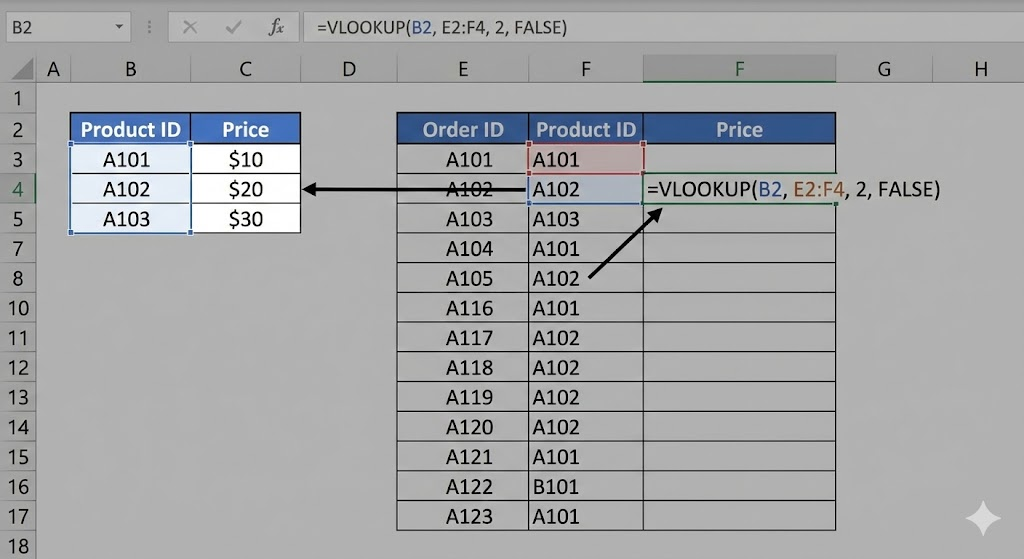
20. VLOOKUP Formula in Excel
The VLOOKUP formula is one of the most popular Excel formulas and functions. It helps you find data from a table.
Example:
=VLOOKUP(A2, A2:D10, 3, FALSE)
If you search “how to use VLOOKUP in Excel,” this is the most common example.
You can use VLookup Excel to match ID, name, price, product details, and much more.
21. HLOOKUP Formula
Similar to VLOOKUP, but works horizontally.
=HLOOKUP(A1, A1:F5, 2, FALSE)
22. SUMIF Formula
Adds numbers based on a condition.
=SUMIF(A1:A10,"Apple",B1:B10)
23. COUNTIF Formula
Counts items based on a condition.
=COUNTIF(A1:A20,"Yes")
24. SUMPRODUCT Formula
This advanced excel formula multiplies values and adds the results.
=SUMPRODUCT(A1:A5, B1:B5)
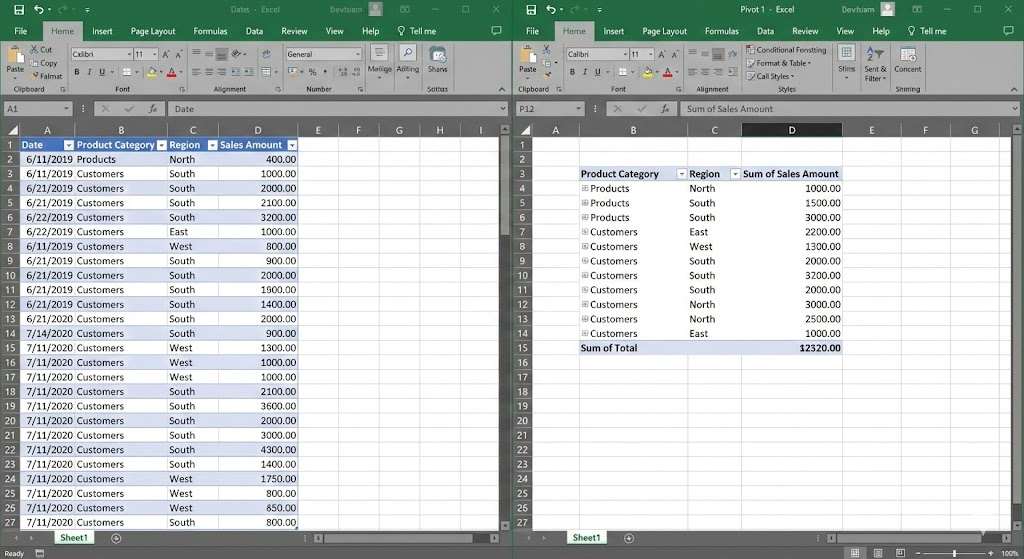
25. Pivot Table in Excel
A pivot table in excel helps you summarize large data.
You can create totals, averages, categories, reports, and more in seconds.
It is one of the most useful excel formulas and advanced excel tools.
26. Conditional Formatting in Excel
This feature helps highlight data such as:
- Highlight values greater than 50
- Show duplicates
- Color cells based on rules
It does not use a single Excel formula, but it uses logic to format data automatically.
27. Excel Shortcut Keys
To be a pro, you need to stop using the mouse. Excel shortcut keys save time. Here are essential shortcut keys in excel:
Ctrl + C / Ctrl + V: Copy and Paste.
Ctrl + Z: Undo action.
Ctrl + S: Save the workbook.
Ctrl + A: Select all data.
Alt + =: AutoSum (Quick sum formula in excel).
Ctrl + Arrow Keys: Navigate to the end of data.
Ctrl + Shift + L: Turn on Filters.
F2: Edit the selected cell.
F4: Repeat last action or lock cell reference ($).
Ctrl + Page Up/Down: Switch between sheets.
Since many people search for shortcut keys in excel or excel shortcuts, mastering these will help you work smarter.
28. Excel Basic Formulas for Daily Use
Here is an excel formulas list you will use every day:
- Add numbers
- Calculate percentage
- Find average
- Remove spaces
- Join text
- Compare values
- Lookup data
These Excel basic formulas are used in office work, business reports, school data, and financial sheets.
29. MS Excel Formulas List (Beginner-Friendly)
Here is a simple MS Excel formulas list:
- SUM
- AVERAGE
- COUNT
- IF
- LEN
- LEFT
- RIGHT
- CONCATENATE
- VLOOKUP
- DATE
These MS Excel formulas help beginners understand the foundation of Microsoft Excel.
30. Advanced Excel
When you learn advanced excel, you work with:
- Pivot Table
- Power Query
- Conditional Formatting
- VLOOKUP + MATCH
- SUMPRODUCT
- IF + AND + OR combinations
- Advanced Excel formulas for automation
Advanced Excel helps you build reports that save hours of time.
31. Excel Tricks for Faster Work
Here are some excel tricks everyone should know:
- Double-click the fill handle to auto-fill data
- Use Ctrl + Arrow keys to jump to the end of a table
- Use “Remove Duplicates” to clean your sheet
- These excel tricks make your workflow much easier.
FAQs
1. What is MS Excel full detail?
MS Excel is a spreadsheet software from Microsoft. It helps you store numbers, create tables, use Microsoft Excel formulas, analyze data, prepare reports, and solve calculations. It is used in schools, offices, accounts, business, data entry, and more.
2. Is MS Excel good for job?
Yes, MS Excel is required in almost every job. Whether you are in accounts, data entry, HR, marketing, banking, or operations, you must know basic Excel formulas, formulas in excel, advanced Excel, and Excel shortcuts.
3. What are the 7 basic Excel formulas?
The 7 basic Excel formulas are:
- SUM
- AVERAGE
- MIN
- MAX
- COUNT
- CONCATENATE
- IF
These are the most useful Excel formulas for beginners.
4. What is F1 to F12 in Excel?
Here is the meaning of F1–F12 keys in Excel:
- F1: Help
- F2: Edit cell
- F3: Paste name
- F4: Repeat last action
- F5: Go To
- F6: Move between panes
- F7: Spell check
- F8: Extend selection
- F9: Recalculate workbook
- F10: Activate menu
- F11: Create chart
- F12: Save As
5. What are the 20 shortcut keys in Excel?
Here are popular Excel shortcut keys:
- Ctrl + C
- Ctrl + V
- Ctrl + Z
- Ctrl + S
- Ctrl + A
- Ctrl + P
- Ctrl + D
- Ctrl + K
- Ctrl + T
- F2
- F4
- Alt + Enter
- Ctrl + Space
- Shift + Space
- Ctrl + F
- Ctrl + H
- Ctrl + B
- Ctrl + I
- Ctrl + N
- Ctrl + O
These shortcut keys in Excel help you work faster.
Conclusion
Learning Excel formulas, Excel functions, useful Excel formulas, Excel sheet formulas, advanced Excel, and Excel tricks will make your daily work simpler and faster. These formulas in Excel help you save time, avoid mistakes, and create clean reports.
Brillica Services provides an Advanced Excel Course online and offline at Dehradun and Delhi locations. If you want practical training with real examples, this course will help you become confident in Microsoft Excel.